
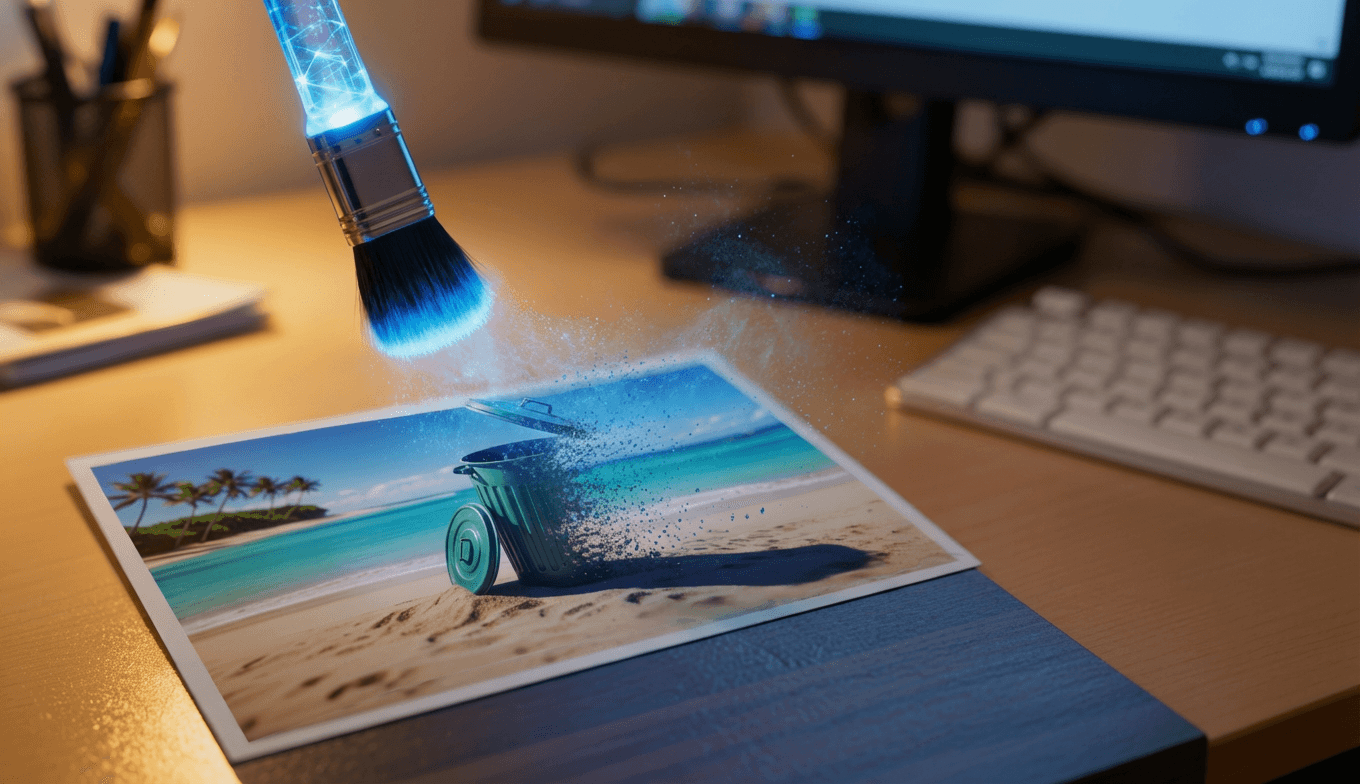
You finally get that perfect vacation shot. The lighting is ideal. The composition is balanced. Then you notice it: a tourist photobombing your Eiffel Tower view, a trash can ruining your beach sunset, or a random car parked in your mountain landscape. In the past, fixing this meant hours in Photoshop with clone stamps and healing brushes. Today, AI-powered object removal does it in seconds.
Wanoza's Erase Elements tool uses advanced inpainting technology to intelligently remove unwanted objects while seamlessly filling in the background. This guide shows you exactly how to use it, what works best, and how to avoid common mistakes.
What Is AI Object Removal and How Does It Work?
AI object removal, technically called "inpainting," works by analyzing the pixels surrounding the area you want to remove. The AI then predicts what should be behind that object based on patterns it has learned from millions of images.
Unlike manual editing where you copy and paste nearby pixels, AI inpainting understands context. If you remove a person standing in front of a brick wall, the AI doesn't just copy nearby bricks. It reconstructs the entire wall pattern, including mortar lines, shadows, and texture variations that make the result look natural.
The process happens in three steps:
- Selection: You mark the object or area to remove using a brush tool
- Analysis: The AI examines surrounding pixels and scene context
- Reconstruction: The AI generates new pixels that match the background seamlessly

Step-by-Step: Removing Objects from Your Photos
Follow this workflow for clean, professional results every time:
- Upload your image
Start with the highest resolution version available. More pixels give the AI more information to work with, resulting in cleaner reconstructions.
- Select the Erase Elements tool
Find this in Wanoza's editing suite. The interface typically shows your image with a brush tool overlay.
- Brush over the unwanted object
Use a brush size slightly larger than the object you are removing. This gives the AI enough context to understand what belongs behind it. For people, brush over the entire figure including shadows.
- Review the result
The AI processes instantly. Check that the background reconstruction looks natural. Look for:
- Consistent texture and pattern
- Natural lighting and shadows
- No obvious repeating patterns or artifacts
- Refine if needed
If the first attempt leaves artifacts or unnatural areas, try these adjustments:
- Adjust brush size (sometimes smaller is better for fine details)
- Remove the object in multiple smaller sections instead of one large brush stroke
- Generate 2-3 variations and select the cleanest result
What You Can Remove (With Real Examples)
AI object removal works on almost anything that does not belong in your scene:
1. People and Tourists
The most common use case. Remove photobombers from landmarks, strangers from street photography, or crowds from scenic shots.
- Before: Family photo with random person walking behind you
- After: Clean family portrait with uninterrupted background
2. Street Clutter
Eliminate visual distractions that break composition:
- Trash cans and recycling bins
- Parking meters and street signs
- Electrical wires and utility poles
- Random cars or bicycles
3. Product Photography Cleanup
Professional product shots require pristine backgrounds:
- Remove price tags, barcodes, or stickers
- Erase stands, clamps, or tripods holding products
- Clean up dust, fingerprints, or reflections
- Remove watermark text or logos (if you own rights)
4. Home and Real Estate Photos
Make properties look their best for listings:
- Remove personal items (family photos, clutter)
- Erase temporary furniture or boxes
- Clean up yard debris or construction equipment
- Remove cars from driveways for cleaner shots
5. Social Media Content
Polish images for professional presentation:
- Remove watermarks from stock photos you own
- Erase brand logos when creating derivative content
- Clean up screenshots by removing UI elements
- Remove dates, timestamps, or metadata overlays
"Brush size matters. Keep your selection just slightly larger than the object you are removing. Too small, and the AI lacks context. Too large, and you risk altering parts of the image you want to keep."
Pro Tips for Perfect Results
- Work with high-resolution images: At least 1024x1024 pixels. More detail = better reconstruction
- Remove shadows with the object: When erasing people or objects, include their shadows in your selection for natural lighting
- Complex backgrounds need care: Patterned walls, foliage, or busy scenes are harder to reconstruct. Remove objects in smaller sections
- Generate multiple versions: AI has slight randomness. Try 3-5 generations and pick the cleanest result
- Zoom in to check details: Review at 100 percent zoom to spot artifacts or repeating patterns
- Combine with other tools: Use Magic Edit for color correction or brightness adjustments after object removal
When AI Object Removal Struggles
Be realistic about limitations. Some scenarios remain challenging:
- Large objects in complex scenes: Removing a car from a busy street with many overlapping elements may leave artifacts
- Transparent or reflective objects: Glass, water, or mirrors are difficult because the AI must reconstruct what is behind AND what is reflected
- Fine details like hair or fur: Individual strands are hard to reconstruct perfectly. Results may look slightly smoothed
- Objects covering critical composition elements: If the unwanted object blocks a key part of your subject, removal may not be possible
In these cases, try removing the object in smaller sections or accept that some manual touch-up may still be needed.
Before You Remove Anything: Important Ethics
AI object removal is powerful. Use it responsibly:
- Only edit images you own or have rights to modify
- Do not remove people to misrepresent events or create false narratives
- For journalistic or documentary work, disclose any edits that change context
- Respect privacy and consent when editing photos of others
When used ethically, object removal enhances creativity and saves time. When used deceptively, it erodes trust. Always consider the purpose and impact of your edits.
Real-World Workflow Examples
Example 1: Vacation Photo Rescue
Problem: Perfect family photo at Grand Canyon, but tourist walking behind
Solution: Brush over tourist and shadow, generate 3 versions, select cleanest background reconstruction
Time saved: 2 hours of manual Photoshop work reduced to 30 seconds
Example 2: E-commerce Product Shot
Problem: Beautiful necklace photo, but display stand visible
Solution: Carefully brush around stand base, generate, check for texture continuity on table surface
Result: Professional product image ready for online store
Example 3: Real Estate Listing
Problem: Great living room shot, but family photos on wall and toys on floor
Solution: Remove items section by section, review each area at 100 percent zoom
Result: Clean, neutral space that appeals to potential buyers
Why This Beats Traditional Editing
Manual object removal in Photoshop requires:
- Clone stamp tool mastery
- Healing brush precision
- Pattern recognition skills
- 30 minutes to several hours per image
- Multiple undo/redo cycles when mistakes happen
AI object removal requires:
- Basic brush tool use
- 10-30 seconds per image
- Instant results with option to regenerate
- No technical art skills needed
The time savings alone make this transformative for content creators, photographers, and anyone who regularly edits photos.
That almost-perfect photo sitting in your camera roll? It is perfect now. Fix it in seconds with AI object removal.