

Selling a design is about selling a feeling. Blueprints, floor plans, and CAD drawings communicate technical specifications, but they fail to convey the emotional experience of living in or using a space. Clients struggle to visualize sunlight hitting a wooden floor, the warmth of natural materials, or the flow between rooms. This communication gap leads to misunderstandings, scope changes, and project delays. AI visualization tools bridge this gap instantly.
With AI-powered rendering, architects and designers can transform rough sketches into photorealistic visualizations in seconds. This allows you to communicate design intent clearly, gather meaningful feedback early, and build client confidence before investing weeks in detailed CAD work. This guide shows you exactly how to integrate AI visualization into your design workflow for faster approvals and better client relationships.
Why Visualization Matters in Architecture
Architecture is fundamentally about creating experiences, not just structures. A floor plan shows room dimensions; a rendering shows how morning light filters through windows. A section drawing shows wall thickness; a visualization shows the texture of materials and the warmth of a space.
The client communication challenge:
- Technical drawings are abstract: Most clients cannot mentally translate 2D plans into 3D spaces
- Emotional connection is missing: Blueprints do not convey atmosphere, mood, or feeling
- Feedback comes too late: Clients often do not understand the design until construction begins
- Scope changes are expensive: Late-stage changes cost significantly more than early adjustments
AI visualization solves these problems by making design intent immediately accessible. Instead of asking clients to imagine the final result, you show it to them—early and often.
Sketch-to-Render: The Game-Changing Workflow
The most powerful AI application for architects is sketch-to-render conversion. This process takes rough hand drawings or simple line sketches and transforms them into photorealistic visualizations while preserving your original design intent.
How sketch-to-render works:
- Create a rough sketch: Draw your concept on paper, tablet, or whiteboard
- Digitize the sketch: Take a clear photo or scan of your drawing
- Upload to Image Generator: Use Wanoza's Image Generator with image-to-image capabilities
- Describe the desired outcome: Specify materials, lighting, style, and mood
- Generate and refine: Create multiple variations, adjust prompts based on results
Example sketch-to-render workflow:
- Sketch: Rough drawing of house layout with basic shapes and lines
- Prompt: "Modern glass house, floor-to-ceiling windows, pine trees surrounding property, sunset lighting, photorealistic architectural visualization"
- Result: Photorealistic render showing the house in its environment with accurate lighting and materials
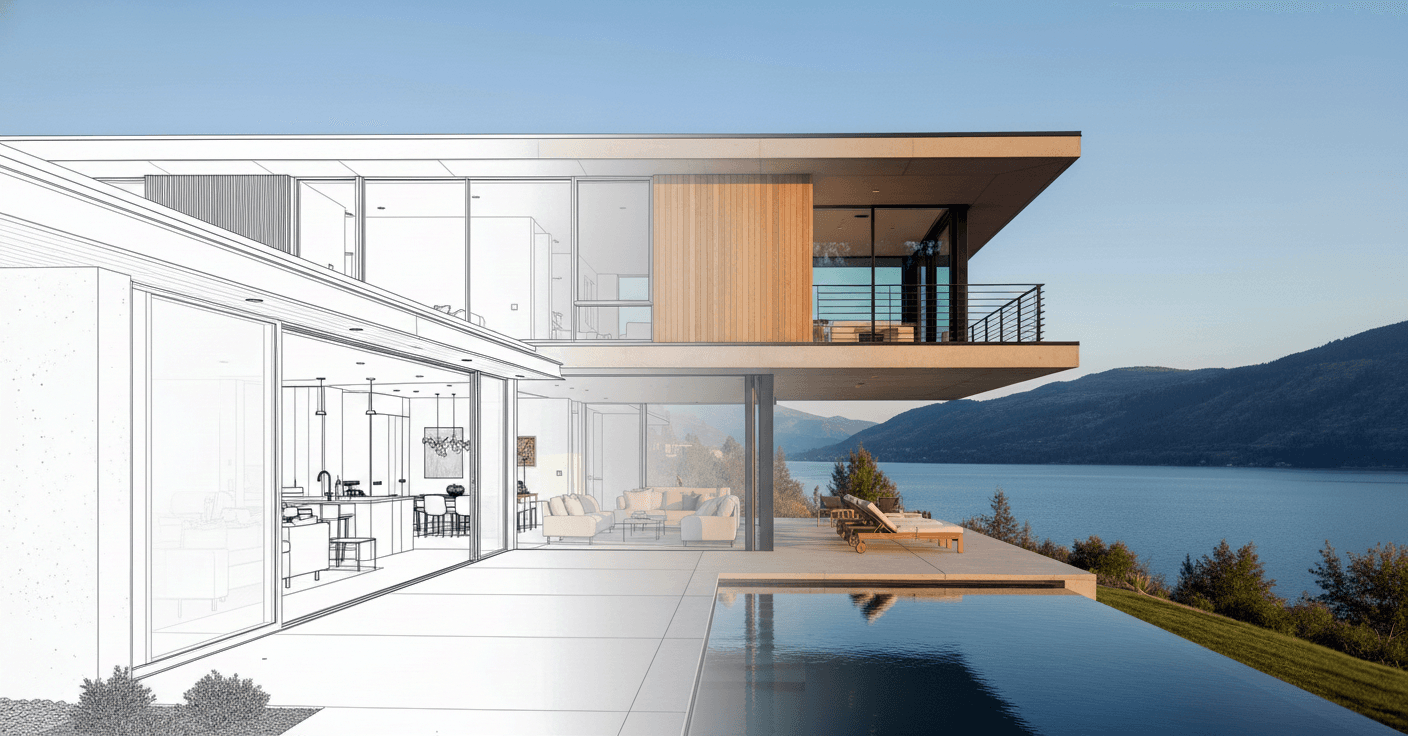
Pro tip: Keep your sketches simple and clear. Focus on major shapes, spatial relationships, and key design elements. The AI will add details, textures, and realistic rendering—but it needs a clear structural foundation to work from.
Real-Time Design Iteration in Client Meetings
Traditional design review meetings follow a predictable pattern: client requests a change, designer takes notes, team spends days or weeks implementing the change, client reviews the updated drawings. This cycle repeats multiple times, extending project timelines and increasing costs.
AI visualization enables real-time iteration. During client meetings, you can show design alternatives instantly:
Real-time iteration examples:
- Client: "What if the floor was concrete instead of wood?"
You: Generate two versions in 30 seconds, show both options - Client: "I'm not sure about the green walls. What about blue?"
You: Create variations with different color schemes on the spot - Client: "Can we see how this looks with larger windows?"
You: Generate versions with different window configurations immediately - Client: "What about adding a skylight in this room?"
You: Show the impact of skylights on lighting and atmosphere in real time
This immediate feedback loop transforms client meetings from passive presentations into collaborative design sessions. Clients feel heard and involved. Designers get clearer direction earlier. Projects move forward faster with fewer revisions.
Creating Mood Boards and Material Studies
Before diving into detailed design work, establishing the right aesthetic direction is crucial. Mood boards help align client expectations with design vision. AI accelerates this process dramatically.
How to create AI-powered mood boards:
- Define the aesthetic direction: Modern, rustic, industrial, minimalist, etc.
- Generate material studies: Create visualizations of different material combinations
- Explore lighting scenarios: Show how spaces look at different times of day
- Compile into mood board: Organize images to tell a cohesive visual story
- Present to client: Use mood board to establish shared understanding
Material study examples:
- Warm and natural: Wood floors, stone walls, warm lighting, earthy colors
- Cool and modern: Concrete surfaces, steel accents, cool lighting, monochromatic palette
- Industrial chic: Exposed brick, metal fixtures, Edison bulbs, raw materials
- Coastal serene: Light woods, white walls, blue accents, natural light
Lighting scenario examples:
- Morning light: Soft, warm light streaming through east-facing windows
- Midday brightness: Strong overhead light, sharp shadows, vibrant colors
- Golden hour: Warm, directional light creating long shadows and rich tones
- Evening ambiance: Artificial lighting, warm interior glow, cozy atmosphere
"AI helps you bridge the gap between what you see in your head and what the client understands. Instead of describing mood and atmosphere, you show it—immediately and convincingly."
Exterior Visualization and Context Integration
Architecture does not exist in isolation. Buildings interact with their surroundings—landscape, neighboring structures, natural features, urban context. AI visualization helps you show how your design fits into and enhances its environment.
Exterior visualization techniques:
- Site context: Show the building within its actual location or similar environment
- Seasonal variations: Visualize how the design looks in different seasons
- Day/night cycles: Show exterior lighting and how the building appears after dark
- Landscape integration: Demonstrate how landscaping complements the architecture
- Scale and proportion: Include people, vehicles, or familiar objects for scale reference
Effective exterior visualization prompts:
- "Modern residential home on wooded lot, mature pine trees, gravel driveway, morning mist"
- "Urban office building on city street, pedestrians walking by, glass facade reflecting sky"
- "Restaurant patio with outdoor seating, string lights overhead, warm evening atmosphere"
- "Mountain cabin with stone chimney, snow-covered roof, smoke rising from chimney"
- "Beachfront villa with infinity pool, ocean view, palm trees, sunset lighting"
Interior Space Planning and Furniture Layout
Interior visualization helps clients understand spatial relationships, furniture placement, and flow between rooms. AI can generate realistic interior scenes that show how spaces will actually be used.
Interior visualization applications:
- Room layouts: Show furniture arrangement and spatial flow
- Material selections: Visualize different flooring, wall, and ceiling treatments
- Lighting design: Demonstrate how artificial and natural light work together
- Color schemes: Test different color palettes before making final decisions
- Styling and decor: Show how accessories and artwork complete the space
Interior visualization workflow:
- Start with floor plan: Use as reference for spatial relationships
- Define key views: Identify the most important perspectives to visualize
- Generate base images: Create realistic interior scenes for each view
- Iterate on details: Refine materials, colors, lighting, and styling
- Compile presentation: Organize images into a cohesive visual narrative
Presenting Multiple Design Alternatives
Clients often benefit from seeing multiple design options before committing to a direction. AI makes generating design alternatives fast and affordable.
Benefits of presenting multiple alternatives:
- Expands client thinking: Shows possibilities they may not have considered
- Clarifies preferences: Client reactions reveal what they truly value
- Builds confidence: Demonstrates thorough exploration of design options
- Reduces revision cycles: Better decisions earlier mean fewer changes later
- Justifies design choices: Shows why the selected option is optimal
Example: Presenting three facade alternatives for a residential project:
- Option A - Modern: Clean lines, large glass areas, minimal ornamentation
- Option B - Traditional: Symmetrical design, pitched roof, classic materials
- Option C - Contemporary: Mixed materials, asymmetrical forms, innovative details
Generate all three options in under an hour. Present them side-by-side. Watch which one resonates with the client. Use their feedback to refine the chosen direction or create a hybrid solution that combines the best elements of multiple options.
Integration with Traditional Design Tools
AI visualization complements rather than replaces traditional design tools. The most effective workflows integrate AI with existing software and processes:
Hybrid workflow examples:
- SketchUp + AI: Create massing model in SketchUp, export as image, enhance with AI rendering
- AutoCAD + AI: Generate floor plans in AutoCAD, use AI to create perspective views
- Revit + AI: Develop BIM model in Revit, use AI for quick client-facing visualizations
- Hand sketch + AI: Draw concept by hand, scan, transform into photorealistic render
- 3D model + AI: Render base model, use AI to add realistic materials and lighting
The key is using each tool for what it does best: traditional software for precision and technical accuracy, AI for speed and visual communication.
Common Mistakes to Avoid
- Overpromising photorealism: AI renders are visualizations, not construction documents
- Skipping human review: Always verify that AI outputs match design intent
- Neglecting scale and proportion: Include human figures or familiar objects for reference
- Ignoring technical constraints: AI can visualize impossible designs—validate feasibility
- Relying solely on AI: Use AI as a communication tool, not a design replacement
Getting Started Today
You do not need to overhaul your entire workflow to start using AI visualization. Begin with one project or one phase of your design process:
- Choose a current project: Pick something you are actively working on
- Start with concept sketches: Transform rough ideas into visualizations
- Present to a client: Use AI renders in your next client meeting
- Gather feedback: See how clients respond to visual vs. technical presentations
- Refine your process: Adjust your workflow based on what works best
The goal is not to replace your design skills or technical expertise. It is to enhance your ability to communicate design intent and build client understanding. When clients can see and feel the final result early in the process, projects move forward faster, with fewer misunderstandings and greater satisfaction for everyone involved.
Ready to transform your sketches into compelling visualizations? Start rendering your designs with AI today.